【VTubeStudio】
購入したLive2D素材をアイテム化して使用する方法
【VTubeStudio】How to Convert a Purchased Live2D Asset into an Item and Use It
はじめに
BOOTHで販売しているLive2D素材をVTubeStudioで使用する方法について解説します。
※説明画像はクリック・タップで拡大します。
購入したアイテム素材をVTubeStudioに追加する
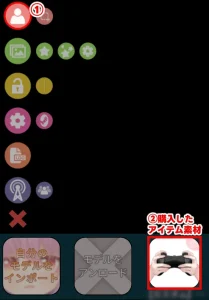
②「自分のモデルをインポート」を選択
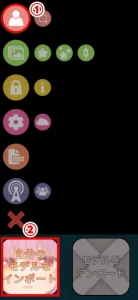
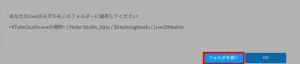
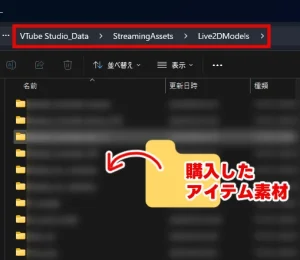
②購入したアイテム素材を選択
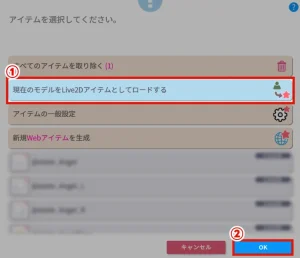
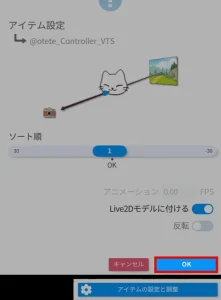
追加したアイテム素材を「アイテム化」する
⚠️追加したアイテム素材だけをモデルとして表示した状態で行ってください。
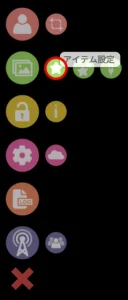
②「OK」を選択
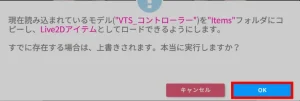
⚠️同名アイテムがある場合、データの上書きにご注意ください。
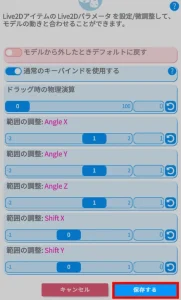
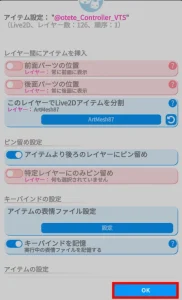
変更箇所があれば「保存する」の前に変更を行ってください。
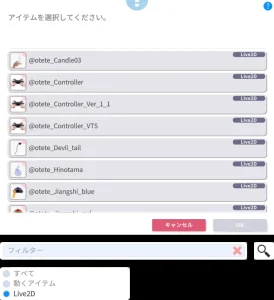
「アイテム化」した素材をアイテムとして開く
▼おててやさんの素材は以下の方法で探しやすくなります。
・「フィルター」に「@otete」を入力
・「すべて・動くアイテム・Live2D」の中から「Live2D」を選択
お疲れ様でした!
これでアイテムとして使用できるようになります。
【困ったときは?】アイテム化がうまくいかない場合
稀にアイコンを素材として読み込んでしまい、アイテム化が上手くいかないことがあるようです。
おそらくVTubeStudioにアイテムを読み込んだ際に「.vtube.json」ファイルが生成されない、もしくは何らかの理由により破損していることが原因です。
また、VTubeStudioを再起動するだけでは上手く更新されない可能性があります。
その場合は以下の方法をお試しください。
STEP2を先に行ってもOKです。
「Itemsフォルダ」「Live2DModelsフォルダ」どちらからもアイテムデータを削除してください。
「Live2DModelsフォルダ」はLive2Dモデルを格納するフォルダです。
「Itemsフォルダ」は「Live2DModelsフォルダ」と同じ階層にあります。
それでも解決しない場合は以下をお試しください。
STEP2を先に行ってもOKです。
「Itemsフォルダ」「Live2DModelsフォルダ」どちらからもアイテムデータを削除してください。
「Live2DModelsフォルダ」はLive2Dモデルを格納するフォルダです。
「Itemsフォルダ」は「Live2DModelsフォルダ」と同じ階層にあります。
「icon.png」というデータです。
それでも解決しない場合はショップよりお問い合わせください。
「アイテムの表情ファイルの設定」をする方法はこちら
Introduction(EN)
⚠️Originally written in Japanese. Translation may not be perfect.
This guide explains how to use the Live2D assets sold on BOOTH with VTubeStudio.
※ Tap or click on the instruction images to enlarge them.
Adding a Purchased Asset to VTubeStudio
②Select “Import Model”.
②Select the purchased asset.
Converting the Added Asset into an Item
⚠️Make sure only the asset you want to convert is displayed as a model before proceeding.
②Select “OK”
⚠️Please note that if an item with the same name already exists, this will overwrite it.
Make any changes before selecting “OK” if needed.
For details on “Configure Item Expressions“, refer to the separate article.
Make any changes before selecting “Save” if needed.
Opening the Converted Asset as an Item
▼To find assets from Oteteyasan more easily, use the following:
・Enter “@otete” in the Filter field
・From “All / Animated / Live2D”, select “Live2D”
Good work!
The asset is now ready to use as an item.
[Troubleshooting] If You Have Trouble Setting It Up
In some cases, the icon may be loaded as an image asset, which can prevent the item setup from working correctly.
This is likely caused by the “.vtube.json” file not being generated when the item is loaded into VTubeStudio, or by the file being corrupted for some reason.
In addition, simply restarting VTubeStudio may not be enough to update the data properly.
If this happens, please try the following steps.
You can also perform Step 2 first and then Step 1.
Please delete the files from both the “Items” folder and the “Live2DModels” folder.
The “Live2DModels” folder is where Live2D models are stored.
The “Items” folder is located in the same directory as the “Live2DModels” folder.
If the problem persists, please try the following.
You can also perform Step 2 first and then Step 1.
Please delete the files from both the “Items” folder and the “Live2DModels” folder.
The “Live2DModels” folder is where Live2D models are stored.
The “Items” folder is located in the same directory as the “Live2DModels” folder.
Please delete the image named “icon.png”.
If none of these steps resolve the issue, please contact the store where you purchased the item.